
This article explains how to find, track, and verify keyword rankings using Ahrefs tools so readers can choose the right feature for a task, set up tracking, and interpret the data. It focuses on operational steps and practical checks for everyday users who already have access to Ahrefs. Where relevant, linked Ahrefs documentation and help articles are cited for feature details and default behavior.
Identify Your Keyword Ranking Check Scenario
When to Use a One-Time Keyword Ranking Check in Ahrefs
Use a one-time check when you need a quick answer about where a keyword currently ranks for a single location or when troubleshooting a recent change (for example after a content update or page migration). One-time checks are appropriate for spot checks, competitive snapshots, or verifying a single keyword’s position without creating a tracking project.
Ongoing Keyword Rank Tracking and Reporting in Ahrefs
Use ongoing tracking when you need trend data, historical context, or regular reports for multiple keywords across locations or devices. Ongoing tracking is the right choice for monitoring campaign progress, client reports, or comparing your visibility to competitors over time. Ongoing tracking requires setting up a project and choosing update frequency and grouping so that results are comparable across reporting periods.
Match SEO Tasks to Ahrefs Ranking Features
One-time checks using Keyword Rank Checker
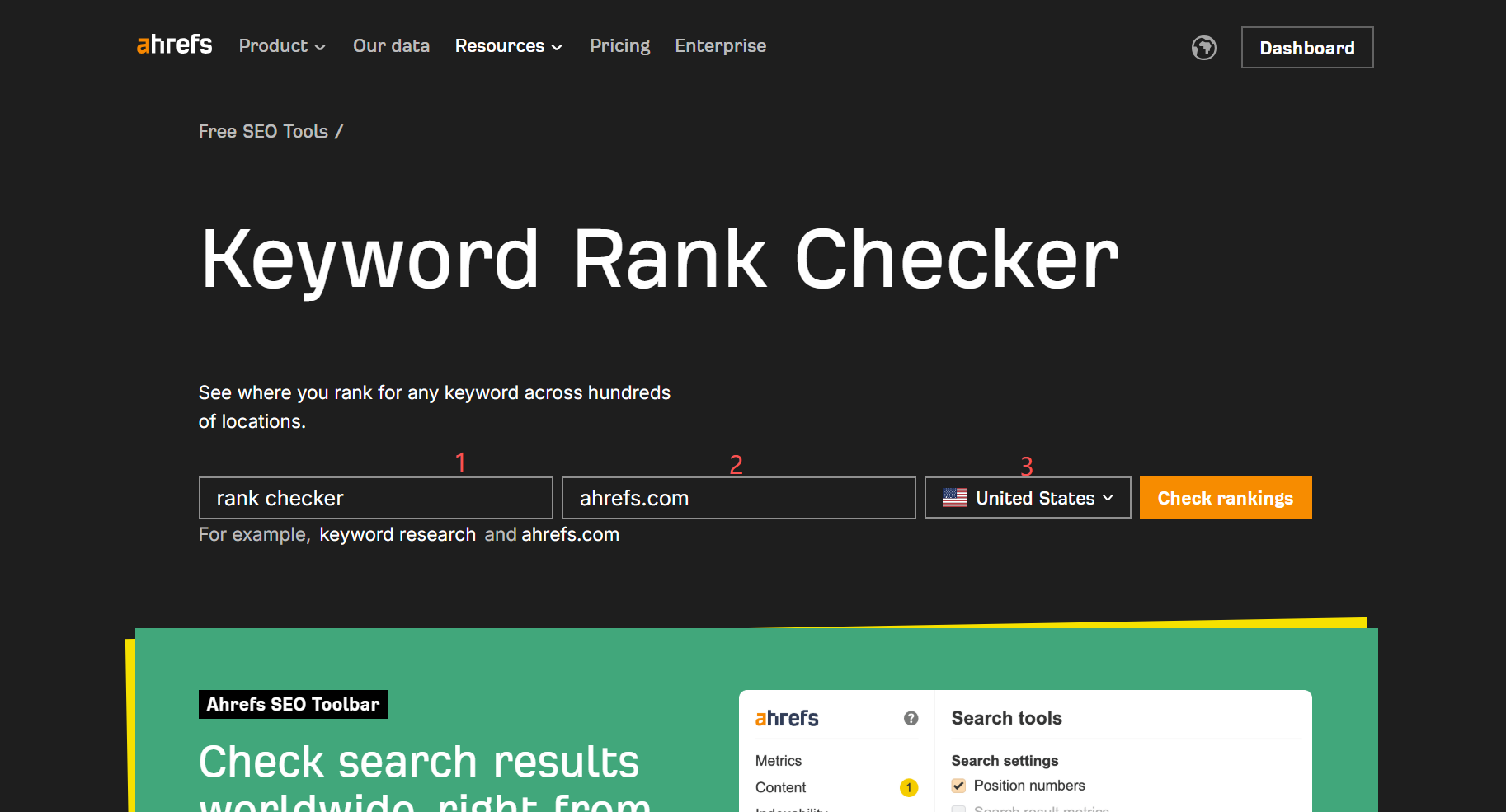
Ahrefs provides a free Keyword Rank Checker for instant, single-keyword queries across many locations. Enter a keyword and a domain or URL to see where that domain ranks in Google for the selected region. This is the fastest way to get a current position without adding keywords to a project.
Page and site keyword lists using Site Explorer
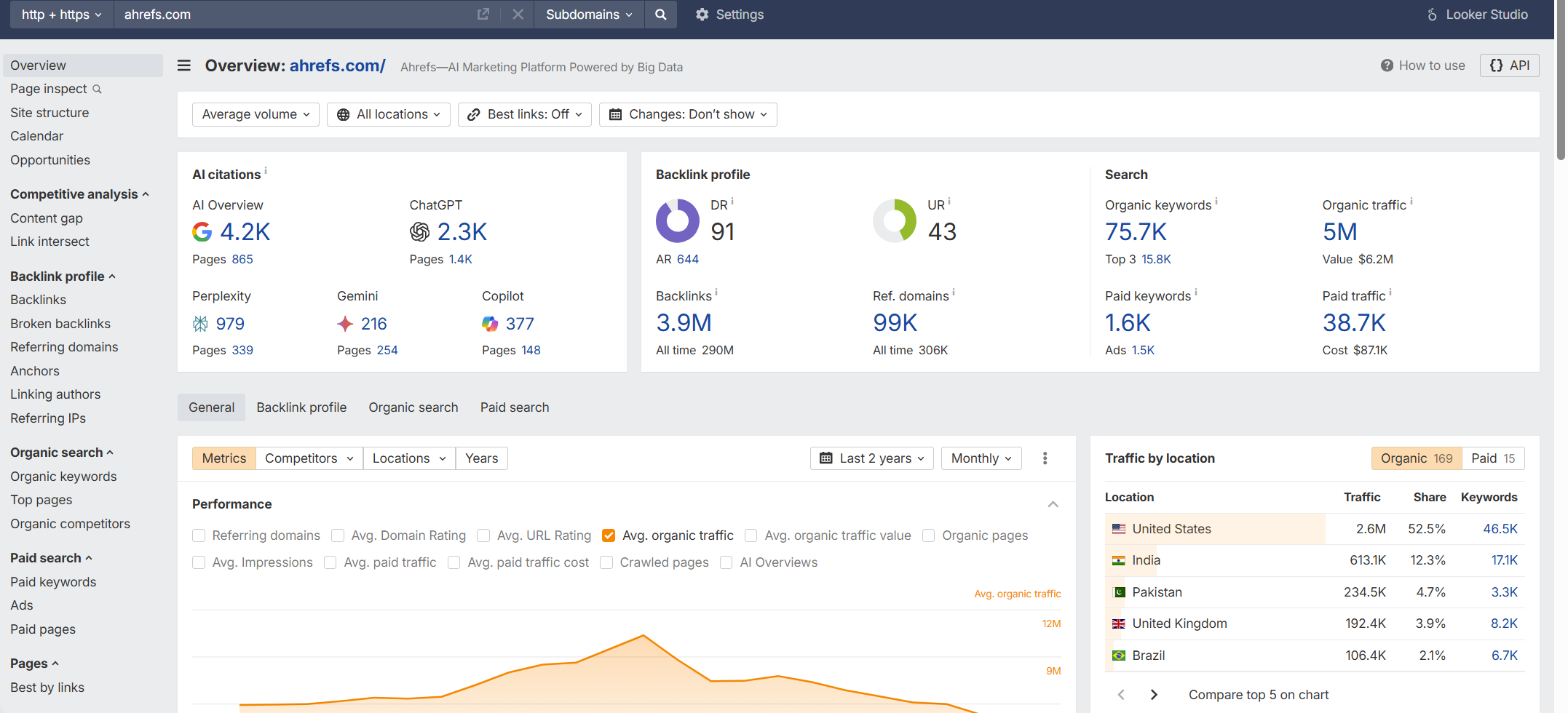
Site Explorer shows the organic keywords a domain or URL ranks for and is useful when you want to see the full set of terms that drive organic visibility to a page or site. Use the Organic Keywords report to review position, country coverage, and the ranking pages that hold those positions. This is the place to inspect which pages rank for a term and how ranking URLs have changed over time.
Ongoing monitoring using Rank Tracker
Rank Tracker is designed for ongoing monitoring and reporting. It tracks keywords on desktop and mobile across many locations, supports grouping and tags, and provides visibility and ranking history for tracked keywords. Rank Tracker is the appropriate feature when you need scheduled updates and comparative visibility metrics.
Quick scenario to feature mapping table
The table below maps common SEO ranking tasks to the most appropriate Ahrefs feature, helping you choose the right workflow quickly.
| SEO Task | Recommended Ahrefs Feature |
|---|---|
| Quick one-time keyword check | Keyword Rank Checker |
| Inspect page keyword footprint | Site Explorer |
| Track rankings over time | Rank Tracker |
How to Check a Single Keyword Ranking in Ahrefs
Step-by-step with the Keyword Rank Checker
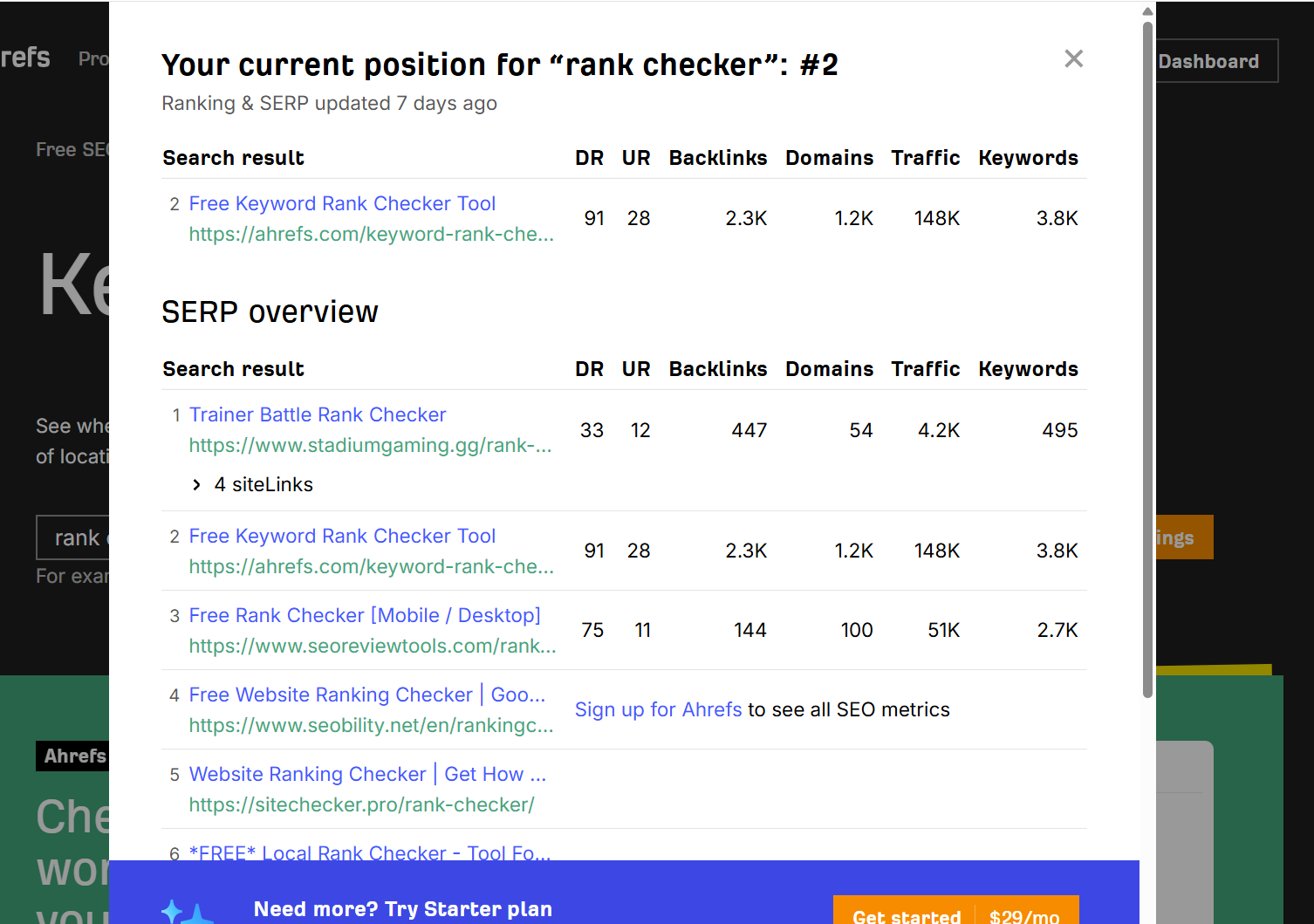
Open Ahrefs Keyword Rank Checker, enter the target keyword, and add the domain or specific URL to check. Choose the location (country, region, or city) and run the check. Record or screenshot the result if you need a timestamped reference. For quick troubleshooting, repeat the check in a second nearby location or change the domain/URL field to test competing pages.
Inspect position history in Keywords Explorer for context
For historical context, paste the keyword into Keywords Explorer and open the position history or SERP position history graph. This reveals how ranking URLs have moved over time and whether recent changes are part of a short spike or a longer trend. Use the chart duration controls to compare weeks or months and spot volatility.
Verify the ranking page context in Site Explorer
When Keyword Rank Checker or Keywords Explorer shows a ranking, open Site Explorer for the reported URL to confirm the landing page, canonical tags, and any redirects. Inspect the Organic Keywords report for the page to see related queries and whether the same page ranks for several variants; this helps determine if a ranking is robust or likely to change after small edits.
How to set up ongoing ranking tracking
Create a Rank Tracker project and add targets
Create a new project in Rank Tracker and add the domain or URL you want to monitor. Add the keywords you care about, either manually or via Ahrefs suggestions, and assign each keyword to a group or tag to keep related terms organized. Grouping simplifies reporting by topic, campaign, or priority.

Configure location device and default update frequency
Choose the target location(s) and device type (desktop or mobile) for each keyword or group. By default, tracked keywords are updated weekly in Rank Tracker; if you require daily updates, Ahrefs offers an add-on option to increase the update frequency. Select the schedule that balances timeliness with the volume of data you need.
Organize keywords with tags groups and alerts
Use tags and groups to segment high-priority keywords, brand terms, or localized keyword sets. Configure alerts and email reports for major position changes or visibility drops so you can act quickly. Regularly review groups to remove irrelevant terms and avoid noise in reports.
Understanding Keyword Ranking Metrics in Ahrefs
Key metrics explained position visibility and traffic estimates
Ahrefs exposes several metrics: the raw ranking position for a keyword, a visibility score that aggregates estimated share of clicks across tracked keywords, and traffic estimates that approximate monthly visits based on rank and volume. These metrics are intended as comparative indicators rather than exact click counts; use them to compare pages, keywords, and the relative impact of ranking changes.
Read position history charts and identify trends
Position history charts show the ranking URLs and their positions over time. Use them to distinguish short lived fluctuations from sustained trends: a one-day dip followed by recovery is different from a multi-week decline. Apply consistent date ranges when comparing historical snapshots to avoid false conclusions.
Why metrics can differ over short periods and how to interpret
Metrics may change rapidly due to SERP volatility, localized differences, personalization, index refreshes, or tracking schedule lag. Interpret sudden changes by checking the position history, confirming the tracked location and device, and reviewing whether multiple pages swapped places in the SERP. Treat one-off drops with caution; look for patterns across several days before making content or link decisions.
Checklist for verifying ranking accuracy
Confirm location device and project settings
Always confirm the Rank Tracker project’s location and device settings before trusting a reported position. Mismatched location or device is a common source of apparent discrepancies between tool data and a user’s local search results.
Manual live search comparison and incognito checks
Perform a manual Google search in an incognito window (or with Chrome’s profile set to a clean session) and use the same location settings where possible. If feasible, use a remote location or VPN to match the tracked region. Manual checks help validate whether the tool’s result matches the live SERP and reveal SERP features that affect perceived ranking.
Check landing page canonical redirects indexing and SERP features
Confirm the reported landing page is indexed, not redirected, and uses the intended canonical tag. Also note SERP features such as featured snippets, local packs, or knowledge panels that change click distributions and the apparent ranking position for organic links. Use Site Explorer to inspect canonical and redirect behavior for the URL in question.
Conclusion
Choosing the right Ahrefs feature depends on whether you need an immediate snapshot or ongoing visibility. Use Keyword Rank Checker for spot checks, Site Explorer to inspect page-level keyword footprints, and Rank Tracker for regular monitoring and reporting. Combine position history analysis with a short verification checklist to separate transient noise from meaningful trends, and align your update frequency to the decision tempo you need.
FAQS
How often should tracked rankings be updated
By default Rank Tracker updates tracked keywords weekly. If you need daily updates, Ahrefs offers a paid Project Boost add-on to increase the frequency to daily. Choose the cadence that fits how quickly you plan to act on reported changes.
Why Ahrefs ranking may differ from live Google results
Differences arise because rank tracking tools use their own crawlers, sampling, and data processing; they also aggregate results by location and device and may not reproduce personalization or real-time index changes. Use position history and manual checks to confirm whether a difference is short-term volatility or a consistent divergence.
Can I track mobile and desktop separately
Yes. Rank Tracker records desktop and mobile rankings separately, and many Ahrefs reports let you toggle between device types so you can compare performance across platforms. Configure each keyword’s device setting when you add it to a project.